
Millions of students, teachers, and parents across the United States start their school day the same way: by typing clever.com into a browser. The Clever Com login portal has become the digital front door for thousands of K-12 schools, putting dozens of classroom apps behind one sign in instead of a dozen separate ones.
If you have ever stared at a login screen wondering which button to click, or watched a student get stuck on a password they cannot spell yet, you are far from alone. This guide walks through exactly how the Clever Com portal works, how students, teachers, parents, and district staff log in, and what to do when something goes wrong.
By the end, you will know how to find your school on Clever, use Clever Badges and QR codes, fix the most common login errors, and get more out of your Clever account.
What Is Clever (Clever.com)
Clever Com is an education technology platform that gives schools a single sign-on system for the digital tools students and teachers use every day. Instead of memorizing a different username and password for a reading app, a math program, and a library database, a student logs in once through the Clever portal and reaches everything from one dashboard.
Clever was founded in 2012 by Tyler Bosmeny, Dan Carroll, and Rafael Garcia, and it grew out of the startup accelerator Y Combinator. The company built its name by solving a real headache for school IT departments: managing dozens of separate logins for every classroom app. In 2021, the Oslo-based quiz platform Kahoot acquired Clever Com in a deal valued at up to 500 million dollars, and Clever has continued to operate as the education login layer used by a large share of American school districts.
The Clever Com official website, clever.com, is not an app or a curriculum on its own. It is the connective layer that sits between a school’s student information system and the learning software a district has purchased, such as reading platforms, math tools, assessment software, and digital libraries.
How Clever Single Sign-On Works
Clever relies on a method called single sign-on, or SSO, which lets a person authenticate once and gain access to several connected applications without logging in again for each one. When a district sets up Clever Com, it syncs roster data from its student information system, including class lists, teacher assignments, and grade levels. Clever then automatically creates and updates student and teacher accounts, so IT staff do not have to build each account by hand.
This automated rostering is one of the biggest reasons schools choose Clever. It cuts down the manual work of adding new students, moving them between classes, and removing graduated students, while keeping every connected app current with accurate information.
How to Log In to Clever Step by Step
Most people reach the Clever Com login page one of two ways: through a direct link their school shares, such as clever.com/in/yourdistrict, or by searching for their school on the main Clever sign in page. Once you land on your school’s portal, the login process generally follows these steps.
- Go to clever.com or the specific school link your teacher or district gave you.
- Find your school by name, or enter your district’s badge or portal code if one was provided.
- Choose your login method. Options usually include Google, Microsoft, a school username and password, or a Clever Badge.
- Enter your credentials or scan your badge when prompted.
- Land on your Clever dashboard, where your classroom apps appear as individual icons.
Clever Login With Google
Many districts use Google Workspace for Education, so their Clever Com portal offers a Clever login with Google option. Clicking this button sends you to Google’s own sign in screen, where you enter your school Google account email and password. Once Google confirms your identity, you are sent back to Clever and signed in automatically. If your district has Google accounts already active on school Chromebooks, this is usually the fastest path in.
Clever Login With Microsoft
Districts using Microsoft 365 for Education offer a similar option, sometimes labeled as a school account login. Choosing this method hands off authentication to Microsoft, where you sign in with your school email and password before being returned to your Clever dashboard.
Clever Login With Username and Password
Some schools issue students a direct Clever username and password instead of linking to Google or Microsoft. This is common in younger grades or in districts that have not adopted a single email provider district wide. The username is often a combination of a student ID and the school’s badge code, and the password is set by the teacher or the district’s IT team.
Clever Badge and QR Code Login for Students Who Cannot Type Yet
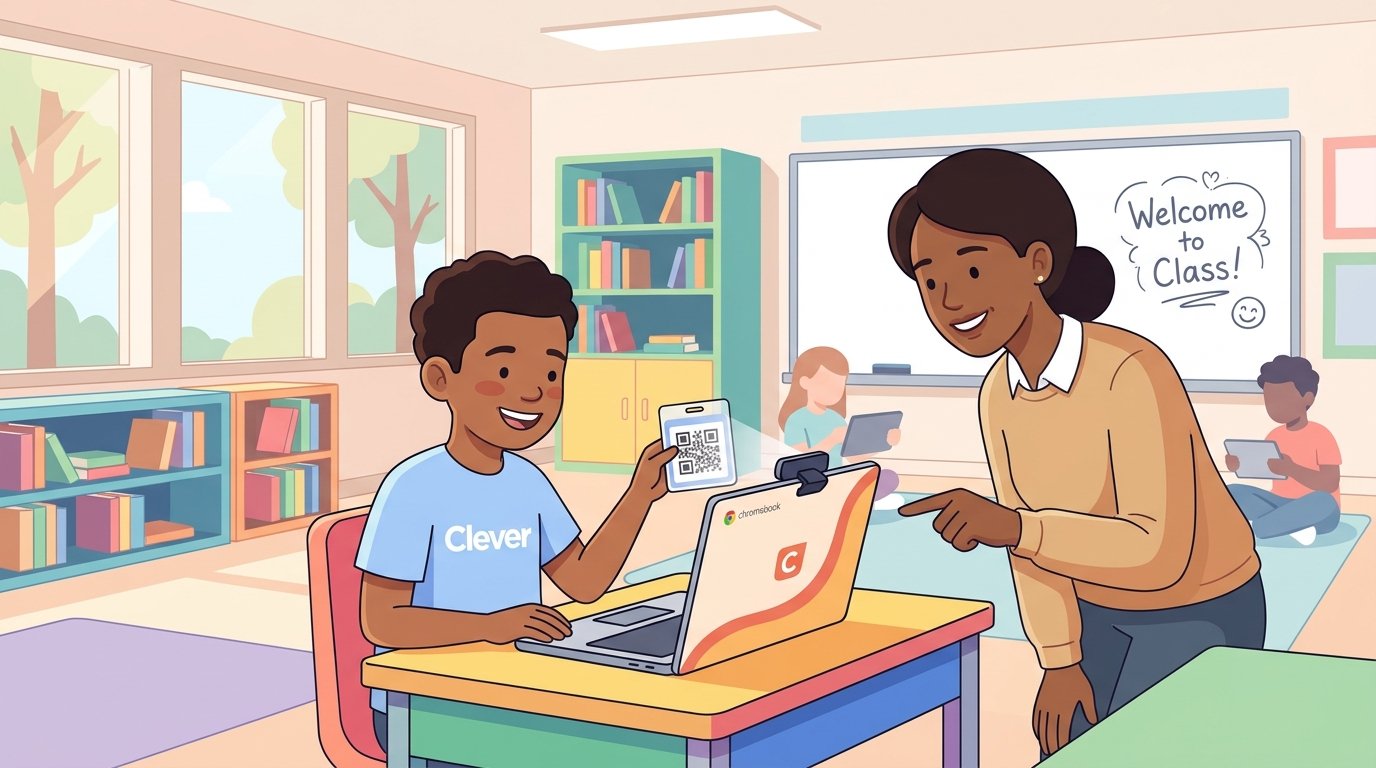
For younger students, typing a username and password is not realistic. Clever Badges solve this with a printed card showing a unique QR code for each student. A teacher holds the badge up to the device’s camera, or the student taps or scans it, and Clever logs them in instantly without any typing. Many elementary classrooms keep a shared bin of laminated Clever Badges so a student can scan their card, start working, and hand the badge back when the device is shared.
Clever Login With a School District Account (Single Sign-On)
Larger districts sometimes run their own identity system, and the Clever portal connects to it through a district-level single sign-on option. Selecting this takes you to the district’s own login page, which may look different from Clever’s, before returning you to the Clever dashboard once your credentials are verified.
Clever Login for Students, Teachers, Parents, and District Staff
The Clever portal looks a little different depending on who is signing in, because each role sees a dashboard built around their own apps and permissions.
Clever Student Login
A student login usually starts on a shared classroom device or the student’s own laptop. After choosing the school and a sign in method, the student lands on a personal dashboard of app icons picked by their teacher and grade level. Younger students often use a Clever Badge, while older students typically sign in with Google, Microsoft, or a school issued username and password.
Clever Teacher Login
Teachers sign in through the same clever.com portal but reach a dashboard built for instruction. From the teacher view, educators can see their class rosters, generate Clever Badges for students who need them, and sometimes manage which apps appear for each class. Many teachers also use the teacher dashboard to monitor which digital tools their students are actively using during a lesson.
Clever Login for Parents
Parents and guardians can use Clever Com Family Portal to check on a child’s assigned apps and, in some districts, monitor progress in connected learning tools. Parent access depends on whether the school or district has enabled this feature and linked a parent account to the student’s record, so availability varies from one school to another.
Clever District Login for School Staff and Administrators
District technology staff and school administrators use a separate admin login to manage the Clever Com instance for their entire district. From here, IT teams control which applications are connected, how rostering data syncs from the student information system, and which login methods are available to students and teachers at each school.
How to Find Your School on Clever
You cannot log in to Clever Com until the portal knows which school and district you belong to, since every school’s app list and login methods are unique.
The simplest way to find your school on Clever is to use the direct link your teacher, school website, or welcome letter provided. Most districts publish a dedicated web address, such as clever.com/in/yourdistrict that skips the search step entirely.
If you do not have that link, go to clever.com and use the district search box on the sign in screen. Type your school district’s name, select it from the results, and then pick your specific school if the district has more than one. From there, choose your login method and sign in as usual.
A quick tip worth passing along to students and parents: bookmark the exact portal link once you find it. District search pages can return several similarly named schools, so saving the correct one avoids repeating the search every morning.
Troubleshooting Common Clever Login Problems
Clever Com login problems are rarely mysterious once you know where to look. Here are the issues that come up most often and how to fix them.
Invalid Username or Password
This is the single most common Clever Com login error. Double check for typos, extra spaces, and whether caps lock is on, since many school usernames are case sensitive. If a student’s password was recently reset by a teacher, make sure you are using the newest one and not an older password saved in the browser.
Clever Login With Google Is Not Working
When a Clever Com login with Google fails, the usual cause is signing in with a personal Gmail account instead of the school issued Google account. Clear the browser cache, sign out of any personal Google accounts on the device, and sign back in using only the school email address.
An App Is Missing From the Clever Portal
If an app a teacher mentioned is missing from a student’s dashboard, it usually means that app has not been assigned to the student’s class or grade level yet. This is a setup issue on the school’s end rather than something a student can fix, so the right move is to flag it to the teacher or school IT contact.
Clever Password Reset and Forgot Password
Students in older grades who use a direct Clever Com username and password can often reset it from the login screen using a forgot password link, if their district has enabled that option. Younger students and many elementary schools route password resets through the teacher or school office instead, since Clever intentionally limits self-service password changes for younger accounts.
Clever Login Not Working at All
When nothing seems to work, try these steps in order: refresh the page, try a different browser or an incognito window, confirm the device has an active internet connection, and check whether the school’s internet or Clever itself is experiencing an outage. If the problem continues after that, contact the school’s IT help desk, since account level issues usually need to be resolved on the district’s end.
Inside the Clever Portal, What You Get After You Log In
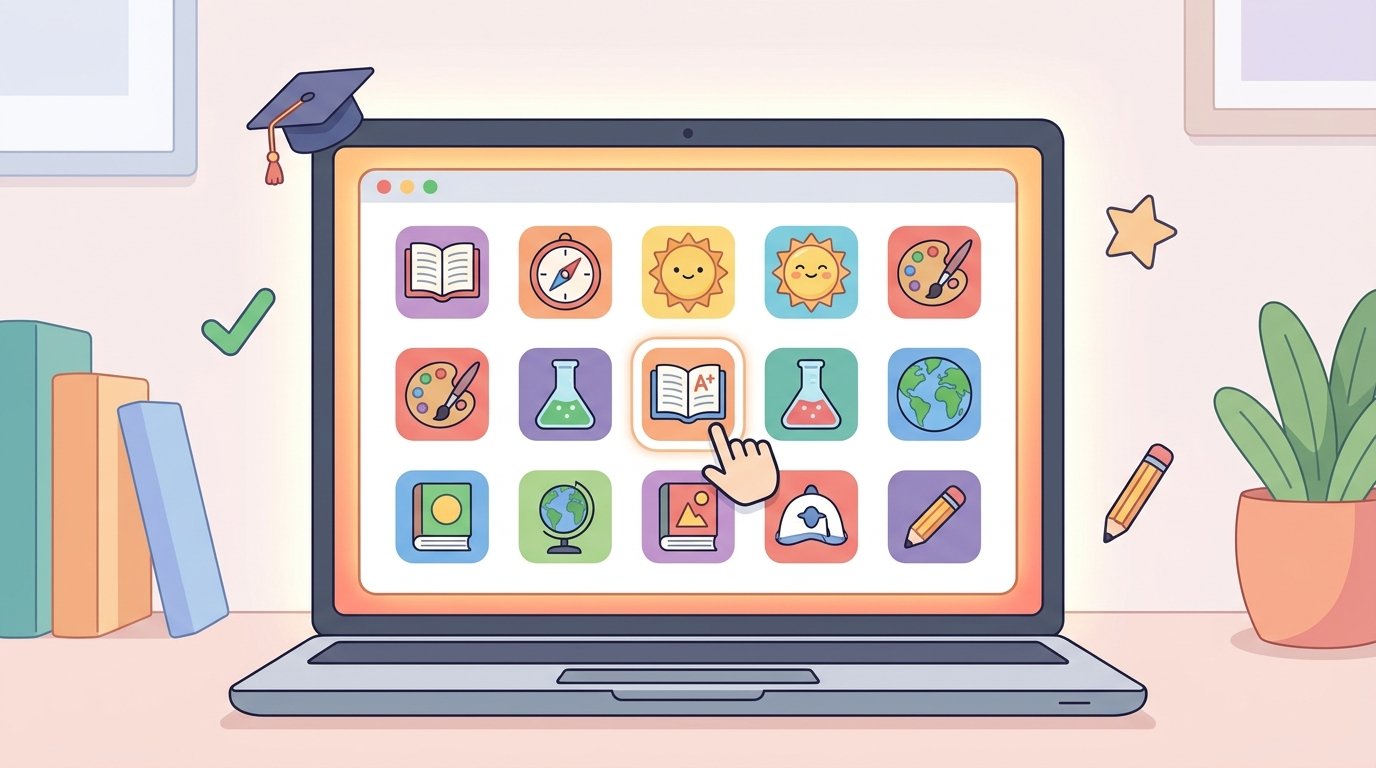
Once signed in, the Clever Com dashboard shows a grid of app icons, each one a direct link into a connected tool, such as a reading program, a math platform, a digital library, or an assessment system. Clicking an icon opens that tool already signed in, with no second login required.
A few features set the Clever Com experience apart from a plain list of bookmarks.
Automated rostering. Because Clever Com syncs with a school’s student information system, class lists and app access stay current without teachers or IT staff manually updating every account each time a student changes classes.
Clever Library. Many districts give teachers access to a searchable catalog of approved educational applications, letting them add new tools to a class dashboard without a lengthy IT request.
Grade level customization. Elementary dashboards are built around simple icons and Clever Badge logins, while middle and high school dashboards assume students can type a username and password and manage more apps at once.
Data privacy commitments. Clever Com has stated public commitments around student data privacy, including alignment with frameworks such as the Student Privacy Pledge, since the platform processes rostering data covered by federal student privacy law.
Is Clever Safe, and Other Common Questions
Final Thoughts on Using Clever
The Clever Com login portal was built to remove friction, not add it, and most of the frustration people run into comes down to a handful of fixable issues: the wrong school, the wrong login method, or an outdated password. Once a student, teacher, or parent finds the correct portal link and bookmarks it, logging in each day becomes a quick, routine step rather than a daily obstacle.
If your school recently rolled out Clever Com, take a few minutes to confirm your login method, save your exact portal link, and ask your school’s IT contact about resetting a password before it becomes an urgent problem on a test day. A little setup now saves a lot of hassle later.