
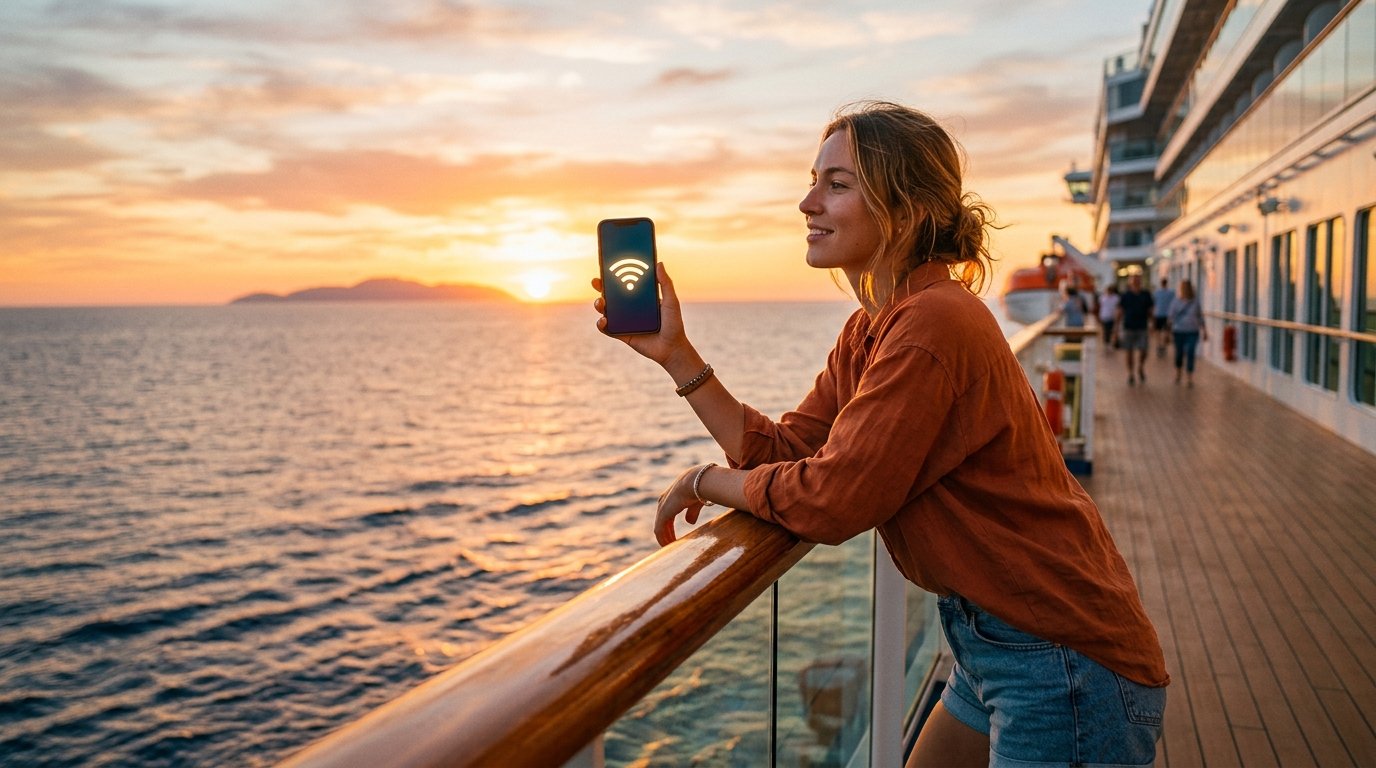
Staying connected on a Norwegian Cruise Line ship used to mean slow buffering, dropped video calls, and a confusing login screen that never seemed to load. That has changed a lot in the last couple of years. nclwifi com now runs its onboard internet through Starlink on most of its fleet, and the gateway to all of it is one simple address: nclwifi.com.
This guide walks through everything a passenger actually needs to know about nclwifi com and Norwegian Cruise Line WiFi. It covers how to log in, how to log out properly so you do not burn through your minutes, what the internet packages cost, how to fix common connection problems, and what you can realistically do online while you are at sea.
What Is nclwifi com
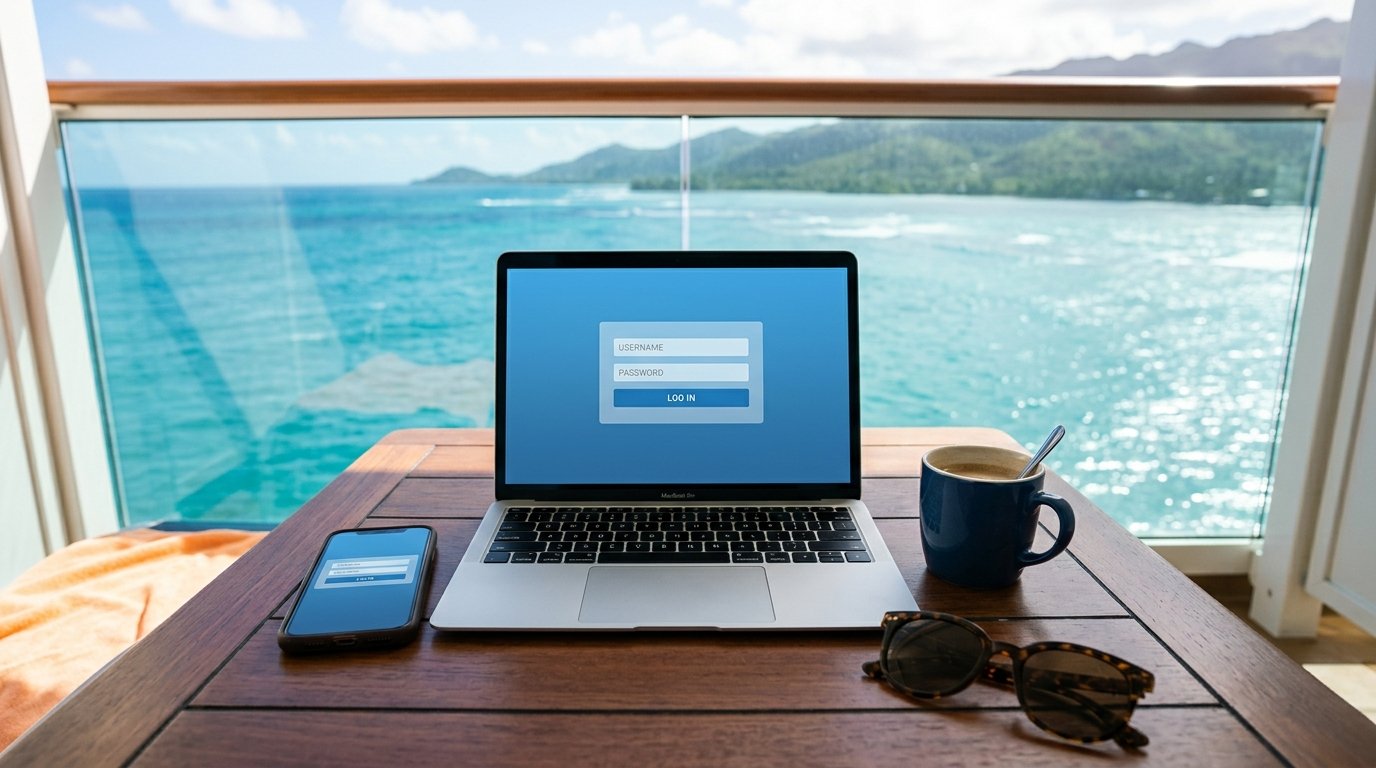
nclwifi com is the official NCL WiFi portal, sometimes called the NCL internet login page or the NCL captive portal. Every time a guest connects a phone, tablet, or laptop to the ship’s wireless network and opens a browser, the device is supposed to be redirected here automatically. This is the page where you register a device, choose or confirm an internet package, and track how many WiFi minutes you have left.
If your browser does not redirect you automatically, typing nclwifi.com directly into the address bar brings up the same login page. It works the same way on every Norwegian ship, so once you have used it once, you know the routine for your next cruise too.
A couple of older guides and forum posts mention typing login.com or logout.com instead. Those shortcuts have been used on some ships in the past and may still work as redirects on certain sailings, but Norwegian’s own cellular and internet FAQ page points guests specifically to nclwifi.com, so that is the address worth remembering.
How Norwegian Cruise Line WiFi Works
Norwegian Cruise Line upgraded its fleet to SpaceX’s Starlink satellite system, which uses low earth orbit satellites instead of the older, slower geostationary satellites that cruise lines relied on for years. The practical result is noticeably faster speeds and a more stable connection, even in open ocean far from any coastline. You can read more about how the underlying satellite network functions on Wikipedia’s Starlink page.
That said, satellite internet at sea still has physical limits. Thousands of guests sharing one connection, combined with the sheer distance a signal has to travel to and from a satellite, means speeds will never quite match home broadband. Expect solid performance for browsing, email, messaging, and even video calls, with streaming quality that is good but can occasionally dip during peak hours like early evening when most of the ship is online at once.
Each ship broadcasts its own WiFi network name, something like NCL_Internet_Bliss or a similar name tied to the ship. Guests simply open their device settings and connect to the ship’s WiFi, after which an internet browser should redirect them to the nclwifi.com login page.
How to Connect to NCL WiFi Step by Step
The process is the same across devices, with small differences depending on what you are using.
Connecting an iPhone to NCL WiFi
Open Settings, tap WiFi, and select the ship’s network from the list. Once connected, open Safari or any browser, and the nclwifi.com login page should load on its own. If it does not appear within a few seconds, type nclwifi.com into the address bar yourself.
Before you do any of this, switch your phone to Airplane Mode first, then turn WiFi back on manually. This stops your carrier from quietly connecting to a cell tower near shore and charging you international roaming fees the moment land comes into range.
Connecting an Android Phone to NCL WiFi
The steps are nearly identical. Turn on Airplane Mode, then re-enable WiFi from the quick settings panel and choose the ship’s network. Open Chrome or your default browser and nclwifi.com should load automatically. Android phones occasionally need a manual refresh or a direct visit to nclwifi.com if the captive portal does not trigger right away.
Connecting a Laptop or Tablet to NCL WiFi
Laptops do not have cellular service to worry about, so you can skip the airplane mode step. Connect to the ship’s WiFi from your network settings, open any browser, and the login page should appear. If your laptop shows you are connected but no page loads, open a new browser tab and manually type nclwifi.com rather than searching for it in Google.
How to Log In to nclwifi.com
The nclwifi com login portal is where you select a package, register your device, and activate your internet access. First-time users create an account using the last name, stateroom number, and a password they set during registration. If you already purchased an internet package before your cruise through Free at Sea or a pre-cruise add-on, your account may already be linked and ready to use once you register your device.
There is no shared network password the way there might be at a coffee shop. Passengers who search for an NCL WiFi login password are usually looking for the network password, and there isn’t one to find, since access is controlled entirely through your personal account on the nclwifi.com portal rather than a WiFi key.
Once logged in, the portal shows your current plan, how many minutes or how much time you have remaining, and a logout button. Keep that browser tab or a bookmark handy, because you will come back to this same screen throughout your cruise to check your usage.
How to Log Out and Save Your NCL WiFi Minutes
This is the single most important habit for anyone on a minute-based plan rather than an unlimited package. Guests should use the logout button to save their minutes if they have a minute plan, and can return to the login window at any time by visiting nclwifi.com.
Simply closing your laptop lid or locking your phone screen does not end your session. The connection often stays active in the background, quietly using up paid minutes while you are at dinner or asleep. To avoid that, go back to nclwifi.com, click logout, and confirm the session has ended before you put your device away.
If you purchased one of the unlimited packages, logging out after every use is not necessary, since you are not paying by the minute. It is still a reasonable habit if you are sharing a device limit among family members or want to switch which device is actively connected.
NCL WiFi Packages and Pricing
Norwegian currently offers two main upgraded WiFi tiers, both marketed as unlimited in terms of total data, with the difference coming down to what you are allowed to do online.
Voyage WiFi Pass
The Voyage WiFi Pass covers web browsing, email, app stores, file sharing through services like Dropbox or Google Drive, and messaging or calling through apps such as Facebook Messenger or FaceTime. It does not include video or music streaming, and it does not include VPN access. The published price is $29.99 per stateroom per day, though pre-cruise bundles and promotions can bring that down.
Streaming Voyage WiFi Pass
This tier includes everything in the Voyage Pass plus the ability to stream video and music from services like Netflix, Hulu, YouTube, Spotify, and Pandora, along with VPN access and the ability to watch video content on social platforms such as TikTok and Instagram. It is priced at $39.99 per stateroom per day.
Adding Extra Devices
Each of these packages covers one device at a time, with additional devices available for $14.99 per device per day, purchased once onboard.
Free WiFi Minutes Through Free at Sea
Many nclwifi com sailings include a set amount of complimentary WiFi minutes as part of the Free at Sea promotion, or as a perk tied to certain cabin categories and loyalty tiers. These minutes come out of a shared or per-guest pool, and once they run out, the ship will prompt you to purchase a package to keep browsing. Checking your remaining minutes on nclwifi.com regularly helps you avoid an unexpected charge mid-cruise.
Prices can shift slightly by ship, sailing date, and ongoing promotions, so the numbers above are what nclwifi com currently lists, not a guarantee for every voyage. It is worth checking pricing again once onboard, since the Internet Café and the login portal itself usually display the most current rates for your specific ship.
NCL WiFi Login Not Working: Fixing Common Problems
A login page that will not load is the most common complaint about ship WiFi, and most of the time it comes down to one of a handful of simple issues.
The nclwifi.com Page Will Not Load
Confirm you are actually connected to the ship’s WiFi network and not still searching for a cell signal. Open a fresh browser tab and type nclwifi.com directly rather than using a bookmark or search engine, since search results can sometimes point to an outdated cached version of the page. If it still will not load, try switching from Safari to Chrome or vice versa, since one browser occasionally handles the captive portal redirect better than another.
Your Device Shows Connected but No Internet
This usually means the device connected to the network but never completed the login step on nclwifi.com. Forget the network in your WiFi settings, reconnect, and let the login page redirect happen again before opening any other apps or websites.
You Switched Devices and Cannot Log In
Since each basic package is tied to one active device, trying to log in on a second device without purchasing an add-on will usually fail or kick the first device offline. If you want to actively use a new device, log out of the first one through nclwifi.com, wait a minute or two for the session to fully close, and then log in on the new device.
Your WiFi Minutes Disappeared Faster Than Expected
This almost always traces back to forgetting to log out of a previous session or a background app quietly using data such as automatic photo backups, email syncing, or software updates. Turning off automatic updates and background app refresh before you board saves a surprising number of minutes.
Using the Norwegian Cruise Line App on Board
The Norwegian Cruise Line app is worth downloading before your cruise, since it handles daily schedules, dining reservations, and onboard messaging. The app uses the ship’s WiFi once onboard, and no personal WiFi minutes are spent using it, which makes it one of the few genuinely free ways to stay connected to the ship’s systems.
To use it, download the app for free from the Apple App Store or Google Play before your trip, then once onboard connect to the ship’s WiFi through nclwifi.com, open the app, and sign in using your last name, date of birth, and your reservation or stateroom number. The older Cruise Norwegian app has been discontinued, so make sure you have the current Norwegian Cruise Line app installed rather than an outdated version still sitting on your phone from a previous trip.
What You Can and Cannot Do on NCL WiFi
Knowing the limits of each package before you board saves a lot of frustration once you are out at sea.
On the Voyage Pass, you can browse normally, send and receive email, use most messaging apps, and access cloud storage. Social media access is included with one notable exception, since TikTok and YouTube both require the upgraded Streaming Voyage Pass to use.
On the Streaming Voyage Pass, you gain full streaming access for services like Netflix and Spotify, VPN access, and the ability to watch video content across social apps. This is also the tier that works best for anyone needing to stream their home security camera feed while away, join video calls that rely on heavier bandwidth, or work remotely during the cruise.
Some websites and services may still load slowly or inconsistently regardless of which package you choose, simply because of the nature of satellite internet and the number of guests sharing the connection at once. Heavy gaming, large file downloads, and video calls during peak evening hours are the situations most likely to feel the squeeze.
Tips to Save Money and WiFi Minutes on Your Cruise
A few habits make a real difference in how far your internet package stretches.
Turn off automatic app updates, cloud backups, and background refresh before you board. These silently eat through data and minutes without you noticing. Log out of nclwifi.com every time you step away from your device if you are on a minute-based plan. Download anything you can in advance, including offline maps, podcasts, and shows, so you are not relying on ship WiFi for things you could have prepared ahead of time. Watch for Free at Sea promotions or bundled WiFi offers when booking, since these often include free minutes or a discounted daily rate compared to buying a package once onboard. If you are traveling with family, consider whether one unlimited plan shared carefully across devices makes more financial sense than multiple individual passes.
Common Mistakes Passengers Make With NCL WiFi
A few avoidable errors show up again and again in passenger reviews and forum posts.
Forgetting to switch to Airplane Mode before connecting to ship WiFi is the most expensive mistake, since it can trigger cellular roaming charges from your own carrier the moment the ship gets close enough to a cell tower. Assuming the login page will always redirect automatically is another common trap. It usually does, but typing nclwifi.com manually takes a few seconds and avoids wasted time troubleshooting. Buying the Streaming Voyage Pass without actually needing to stream is an easy way to overspend, since the Voyage Pass covers most everyday needs at a lower price. Finally, not checking remaining minutes through the nclwifi.com portal regularly can lead to an unpleasant surprise when the connection suddenly cuts off mid-task.
Frequently Asked Questions
Final Thoughts
Nclwifi com has come a long way from the days of painfully slow satellite connections and constant disconnects. With Starlink powering most of the fleet, the nclwifi.com portal now serves as a genuinely reliable gateway to browsing, messaging, and even streaming while you are hundreds of miles from the nearest coastline. The key to a smooth experience is understanding which package actually fits how you plan to use the internet, logging in and out through nclwifi.com correctly, and building a few simple habits before you board so your minutes last the whole cruise instead of disappearing on the first day.
Source Links
- https://www.ncl.com/faq/cellular-and-internet-faqs
- https://www.ncl.com/apps
- https://www.ncl.com/faq/how-much-is-the-wifi-package
- https://www.ncl.com/ca/en/cruise-faq/what-other-wi-fi-packages-will-be-offered
- https://en.wikipedia.org/wiki/Starlink
One thought on “NCLWiFi Com Login Made Simple A Complete Guide to Fast Onboard Internet”